
Delivery route sequencing: putting the right Jobs first (or last)

Sometimes the most efficient route is not a practical route. A delivery may need to happen early without needing an exact appointment. Another customer may only be practical near the end of a run, but a fixed time window would be unnecessarily rigid. Either way you want to influence how a route optimisation algorithm sequences a delivery route.
Previously, delivery route sequencing was forced one of two ways: planners create artificial delivery time windows, or they manually rearrange every route after optimisation. Both approaches add maintenance. Time windows tie the plan to the clock, while manual edits give up part of the distance and time saving the optimiser just found.
The new Route Segments optimiser constraint gives Tarot Routing a more direct instruction. Mark a Job as Start and the optimiser places it in the opening block of its route. Mark it as End and the optimiser places it in the closing block. Leave it unset and the Job can sit anywhere between them.
Read on to learn how to use Route Segments in Tarot Routing.
Before you start: enable the v2 optimiser
Route Segment is enforced only by v2 (GRLS Beta with Traffic). An Administrator must enable it for the organisation before planners use Route Segments:
Open the Admin panel.
Go to Organisation Settings → Optimisation Settings.
Under Optimisation Engine, select v2 (GRLS Beta with Traffic).
Select Save.

The setting is organisation-wide. Confirm the change with your organisation's routing administrator before switching optimisation engines.
What Route Segments do
Route Segments control delivery route sequencing at the block level rather than the stop level. An optimised route follows this shape:

The Start and End groups are contiguous blocks.
Start does not always mean one exact first stop. A lone Start Job on a route will be first. If several Jobs are marked Start, they sit together in the opening block and Tarot chooses their most efficient order.
End works the same way. A lone End Job on a route will be last, while several End Jobs form an optimiser-ordered closing block.
Route Segment is not a time window. It controls relative placement rather than an arrival time.
Route Segment is not priority. It does not make a Job mandatory or change the penalty for leaving it unserved.
Route Segment does not choose the Driver. The optimiser still decides the best allocation while respecting the other constraints (e.g. Territories or Type) in your Scenario.
When to use Route Segments
Use a Route Segment when the operational rule is about the broad phase of a route rather than a precise time.
For example:
ensure important customer's Jobs are early in each route when multiple daily delivery waves or changing volume makes Time Window constraints impractical
leave collections or returns until the closing part of a route
group sites that should be served after the main delivery round
avoid creating artificial time windows when Drivers leave at different times
Use a real Arrive After or Leave By constraint when the customer has an actual opening time, appointment or receiving deadline. Route Segments do not guarantee a clock time.
Set Route Segment on a Job
Open the Scenario in the Planning stage.
Add a Job or edit an existing Job.
Under Constraints, find Route Segment.
Select Start, End or - for no Route Segment.
Save the Job.

To apply the same setting to several Jobs, select the Jobs in the Planning panel, open Bulk Edit Jobs, set Route Segment and save.
Use a Client default for repeat work
If the same Client normally belongs at the start or end of a route, set Route Segment on the Client Table. When Tarot creates a Job from that Client and no Job-level Route Segment is supplied, Tarot copies the Client setting to the new Job.
A Job-specific Start or End setting takes precedence when the Job is created. Changing a Client does not retroactively change Jobs that already exist, so review existing Jobs separately.
A practical example: from Planning to optimised routes
This demo Scenario uses three Drivers who start and end in Botany. Job 12 is in Avalon, far from the Drivers' start and end location. Set it to Start to demonstrate that an operational sequencing rule can take precedence over the most natural geographic order.
Jobs 10 and 17 are both in Bondi, much closer to Botany. Set both Jobs to End to create a two-Job closing block. Tarot can still choose their most efficient order within that block.
Before optimisation, the Planning map shows each Job's location without a sequence number. The callouts identify the three Jobs with Route Segment constraints.

Run the optimisation as normal. The complete result shows how Tarot has allocated and sequenced all 20 Jobs across three Runs.

Expanding the relevant Runs to inspect the result. Job 12 is served first in the Botany 1 Run, while Jobs 17 and 10 are the final two Jobs in the Botany 3 Run before the Driver returns to Botany.
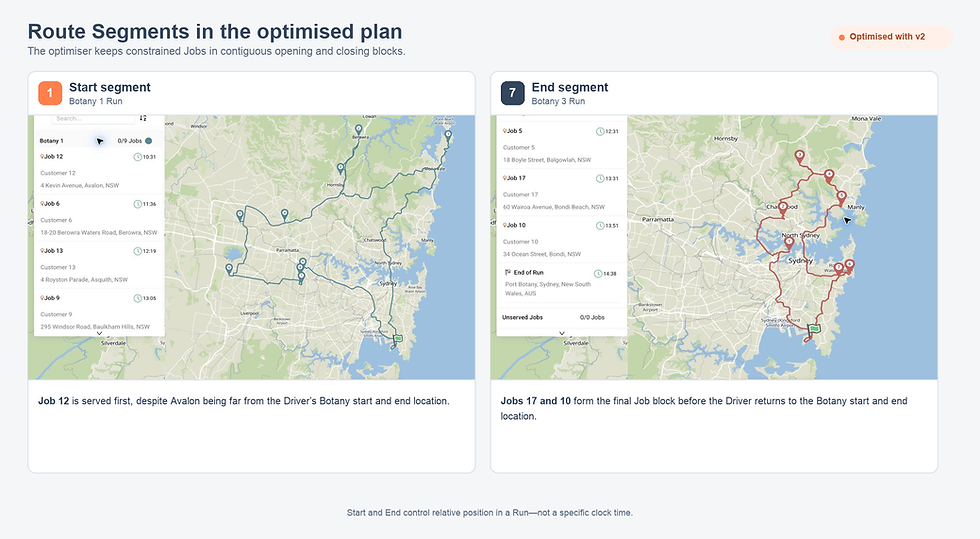
The result demonstrates both behaviours: a lone Start Job becomes the first Job on its Run, while multiple End Jobs form a closing block whose internal order is still optimised.
If a constrained Job is unserved, review the other constraints and available Driver capacity. Route Segment controls where the Job can be placed; it does not force an otherwise infeasible Job onto a route.
Route Segments and spreadsheet uploads
Route Segment can also be supplied in spreadsheet uploads:
In the new Job upload format, add job.route_segment to set the value directly on each Job.
In a Client upload, add route_segment to set the default copied to new Jobs for that Client when the Job does not supply its own value.
Use start, end or a blank value.

Delivery Route Sequencing — Frequently Asked Questions
Does Start force a Job to be the first stop?
If it is the only Start Job on its route, it will be first. If several Jobs are marked Start, Tarot places them together in the opening block and optimises their order within that block.
Does End force a Job to be the last stop?
If it is the only End Job on its route, it will be last. If several Jobs are marked End, Tarot creates a closing block and optimises their order within it.
Will a Start or End Job always be served?
No. Route Segment is a placement constraint, not a priority or mandatory-service rule. A Job can still be unserved if the full set of constraints makes it infeasible.
Should I use Route Segments or time windows to sequence a route?
Use Route Segments when the requirement is relative, for “early in the route” or “late in the route”. Keep time windows for actual clock-based commitments.
Can I set a default sequencing rule for a regular customer?
Yes. Set Route Segment on the Client. Tarot copies it to a new Job when the Job does not supply its own setting.
I set Route Segment, but the route ignored it. What should I check?
Check Admin panel → Organisation Settings → Optimisation Settings. Route Segment is enforced only when the organisation uses v2 (GRLS Beta with Traffic). Select v2, save the setting, then run the optimisation again.
Get started
Route Segments are live in Tarot Routing and give you delivery route sequencing control without adding time windows. Open a Scenario in Planning, mark a small number of demo Jobs as Start or End, then optimise and compare the route with your current workflow.
Want to connect directly to the v2 optimiser can respect, check out the optimisation API docs.
Want help choosing between Route Segments, time windows and priority? Contact the Tarot team at support@tarotanalytics.com.

Comments