
Delivery notifications, tracking links and ETA updates answer one question well: where is my delivery, and when will it arrive.
Then something changes. A tyre goes flat and the run slips two hours. Your customer gets called away and there is nobody on site to take the sofa. The driveway is blocked, but there is a loading zone round the side that your driver would never find on their own.
None of that is a tracking problem. It is a conversation, and until now it happened on the phone, through whoever happened to pick up. If it happened at all.
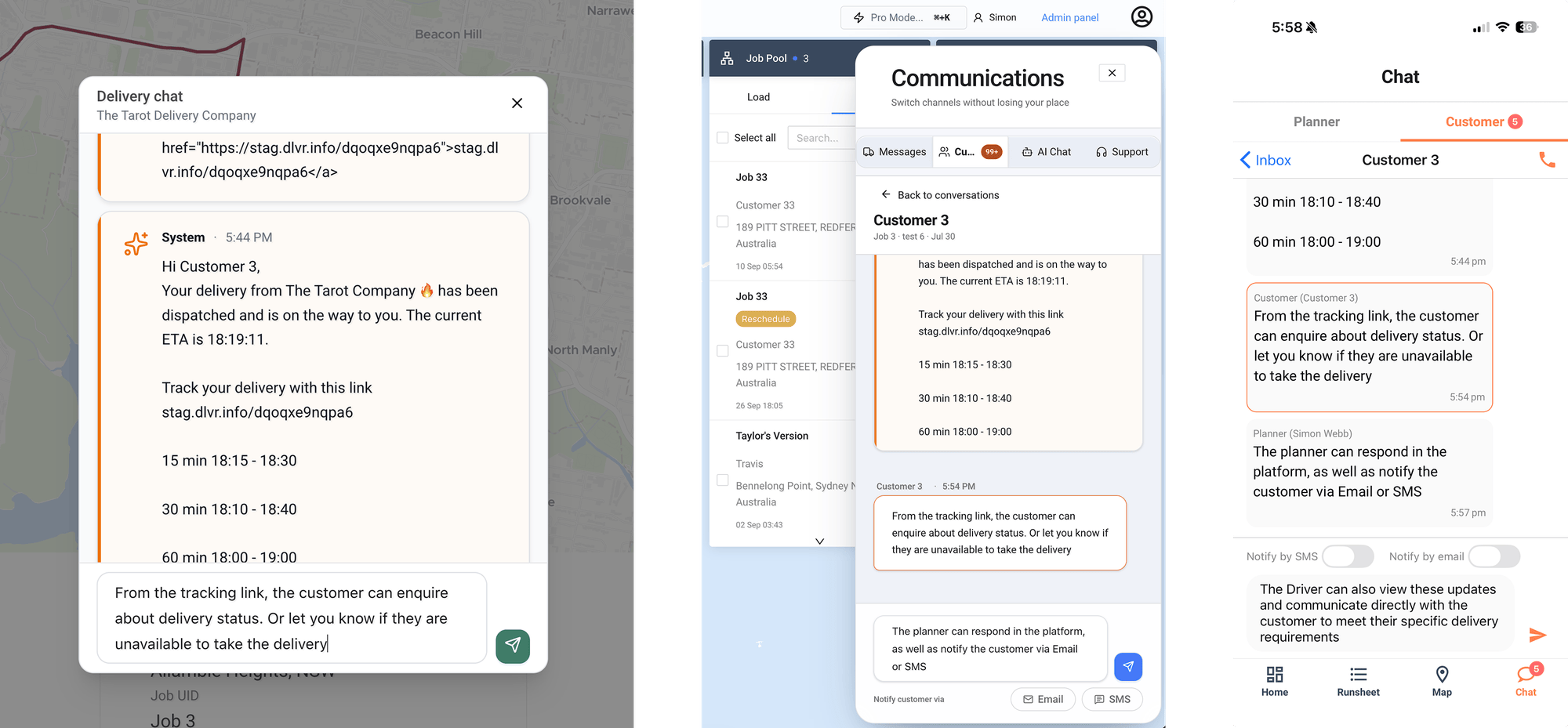
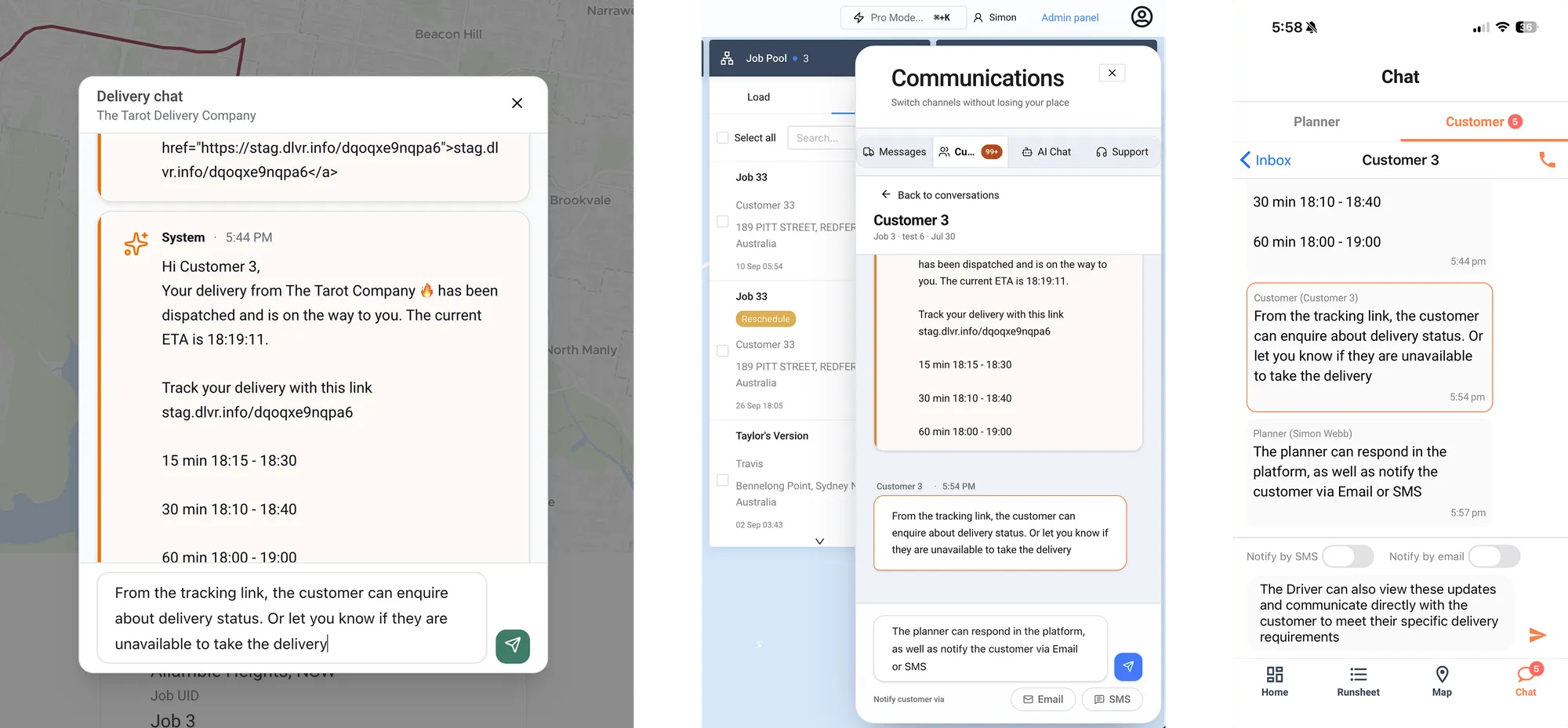
Customer Communications closes the loop that tracking links and ETA updates open, turning a one-way status feed into two-way delivery communication on every delivery. Your customer replies to the tracking link they already have. The message lands with your planner in the platform and with the driver in the Driver App at the same time, so whoever is best placed to solve it can answer. There is no app for the customer to download, no login, and no account.
Live in Tarot Routing on 7 August 2026. This post covers how to switch it on and how to use it.
What Customer Communications Does
- Customers reply directly from their delivery tracking link, with no app and no login
- Replies appear in the platform for planners and in the Driver App for the driver on that run
- Automatic notifications sit in the same thread, so you see one continuous conversation per Job rather than a set of disconnected alerts
- Planners and drivers can push a reply out as an Email or SMS as well as into the tracking link chat
- Drivers can see customer contact details and call directly when a message will not do
- Jobs with missing or malformed contact details are flagged before you dispatch
Step 1: Check Your Organisation Has the Right Modules
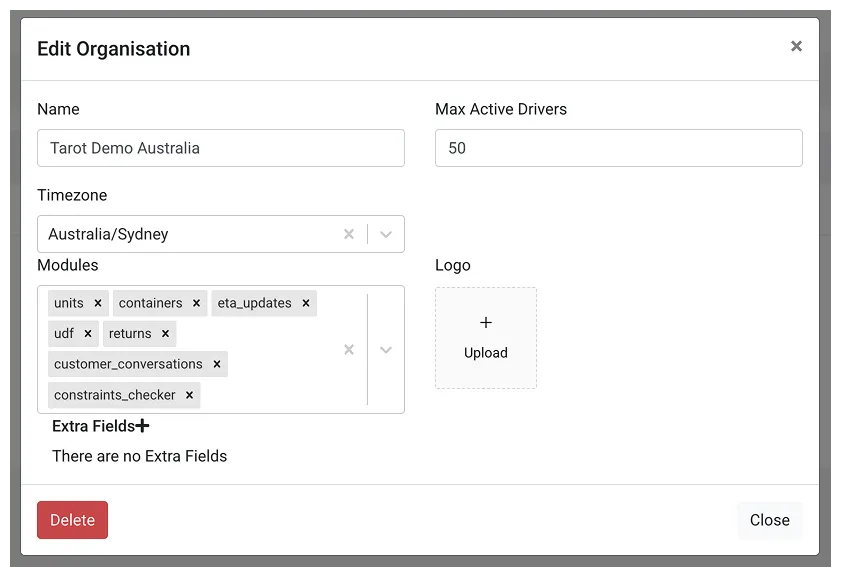
Customer Communications needs two modules active on your organisation: udf (User Defined Functions, which Events & Actions depends on) and customer_conversations.
Check under User Management → Organisations in the admin panel. If either is missing, contact Tarot Support in the platform or email support@tarotanalytics.com and we will enable them for you.
Step 2: Check Permissions
For each Role in Tarot Routing two permissions control if your User can access. customer_conversations_read lets a user see messages. customer_conversations_write lets them send messages. Warehouse Manager, Dispatcher and Customer Support View all have both switched on by default. If your organisation uses custom roles, check them before you go looking for a panel that is not there.
Worth knowing: this is a permission set in its own right. You can give a support person messaging access without giving them access to optimisation or run planning.
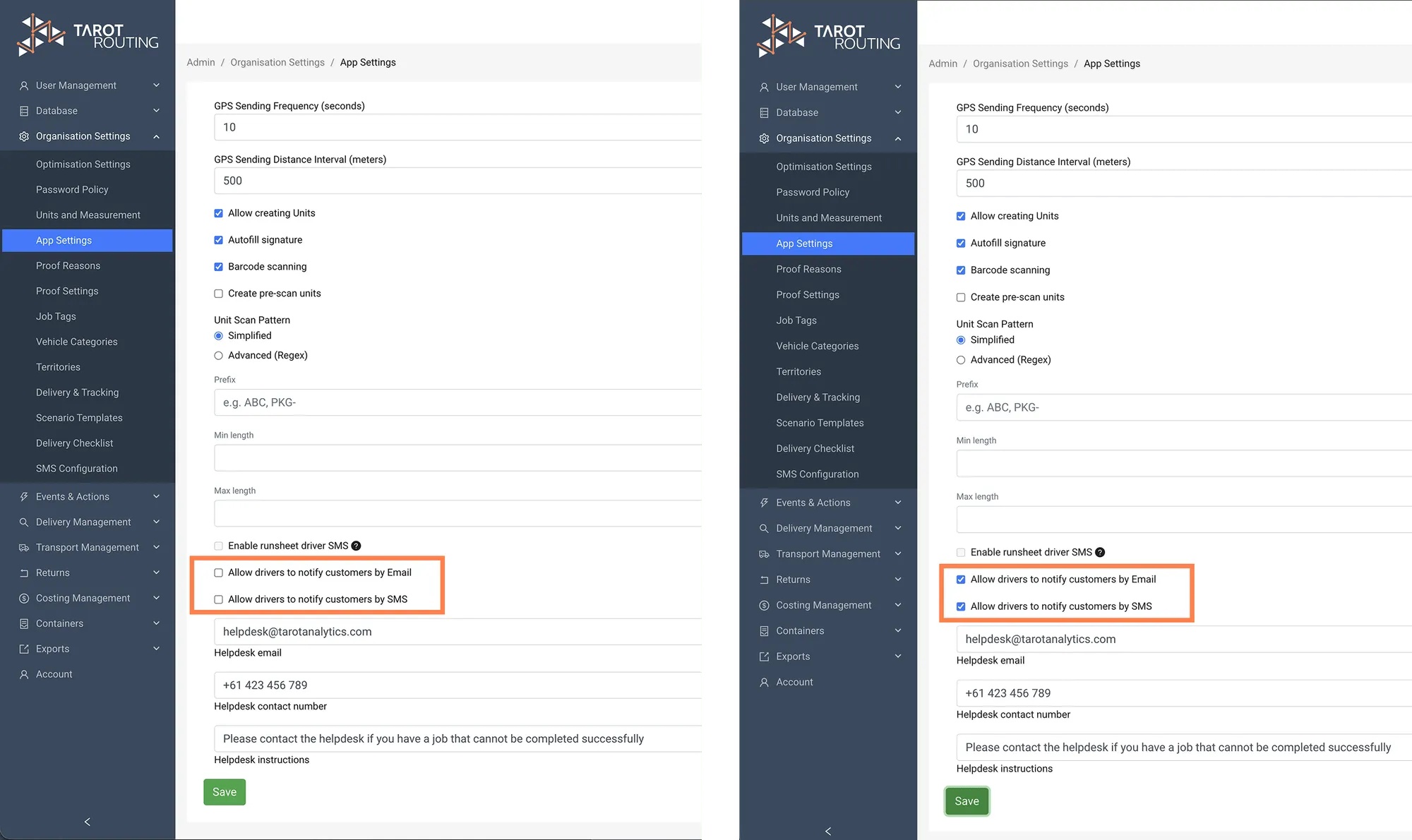
Drivers can always send messages throught the tracking link once customer conversations module is enabled. However if you want drivers to be able to push replies out to customers by Email or SMS (Step 12), you need to turn this on explicitly in the admin panel.
Go to Organisation Settings → App Settings and tick Allow drivers to notify customers by Email and Allow drivers to notify customers by SMS. Both are off by default — enable whichever channels your drivers need.
Step 3: Set Up Your Notification Messages in Events & Actions
Every conversation starts from the tracking link, so your customers need to receive one.
In Events & Actions, configure the Email or SMS notifications you want to go out. Out for Delivery, You’re Next and Delivery Complete are the usual three. If you already have these running, you only need to check one thing.
Every message must include {{ job_tracking_link }} as a field. That is the link that takes the customer to the tracking page where they can reply. Without it there is no conversation.
Step 4: Load Your Jobs and Check Contact Details
Create a Scenario and upload Jobs as you normally would.
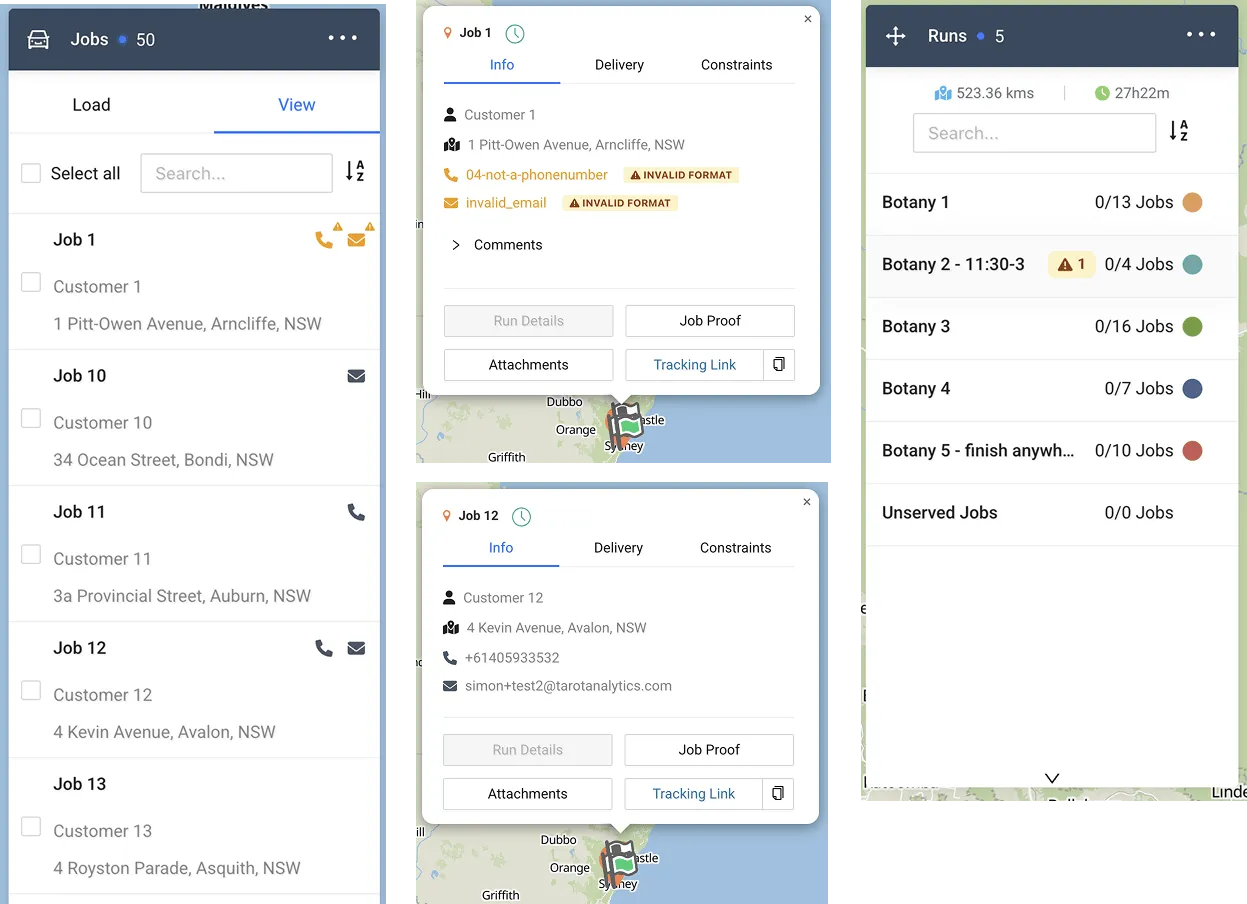
The map interface now shows you which Jobs carry customer contact information. A phone icon means a mobile number is present, an envelope means an email address. Where a number or address is present but malformed, it is flagged as INVALID FORMAT on the Job popup and with a warning triangle on the job list.
Fix these before you dispatch. A missing country code or a typo in an email domain is the most common reason a customer never receives their tracking link.
Step 5: Optimise and Dispatch
Optimise and dispatch Runs to your drivers as normal. When a driver taps Start Route and begins closing Jobs, the notifications you configured in Events & Actions fire, each one carrying the tracking link.
Step 6: Your Customer Replies From the Tracking Link
The tracking page has a Messages button. Your customer taps it and types.
Two settings are worth knowing about, both under Organisation Settings → Delivery & Tracking. You can rename that button to match your own language, or turn it off completely if you would rather customers did not message you on a particular type of work.
Step 7: Where the Reply Lands
A customer enquiry arrives in two places at once. It appears in the communications panel in the platform with a notification, and in the Driver App for the driver running that Job. Planner or driver, whoever gets there first can answer.
Your customer reads replies in their tracking link chat. They do not receive an extra SMS or email every time someone from your team responds, unless you choose to send one. Step 11 covers that.
Step 8: Messaging From the Platform
There are two ways in.
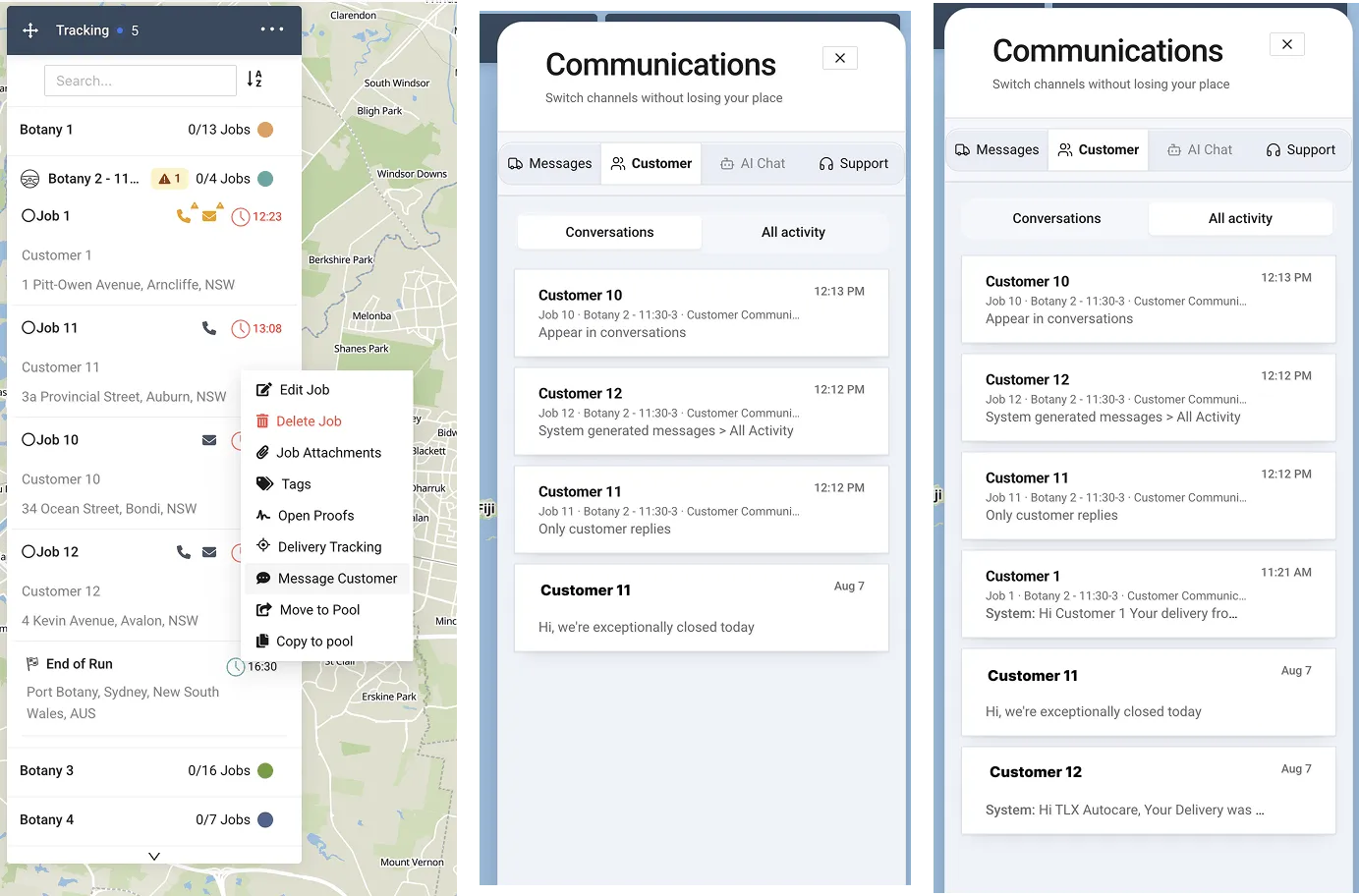
Right-click a Job on the map, the run list or the job list and choose Message Customer. Or open the Customer tab in the communications panel at the bottom right of the main interface.
Inside, a filter is on by default:
- Conversations shows Jobs where a customer has sent a delivery enquiry, or where someone from your team has sent something beyond the automatic notifications. This is your action list.
- All activity shows those plus every system-generated message. This is your audit trail.
Open any chat and you see both together. Automatic notifications and human messages in one thread, in order, with the Job, Run and date in the header.
Step 9: Messaging From the Driver App
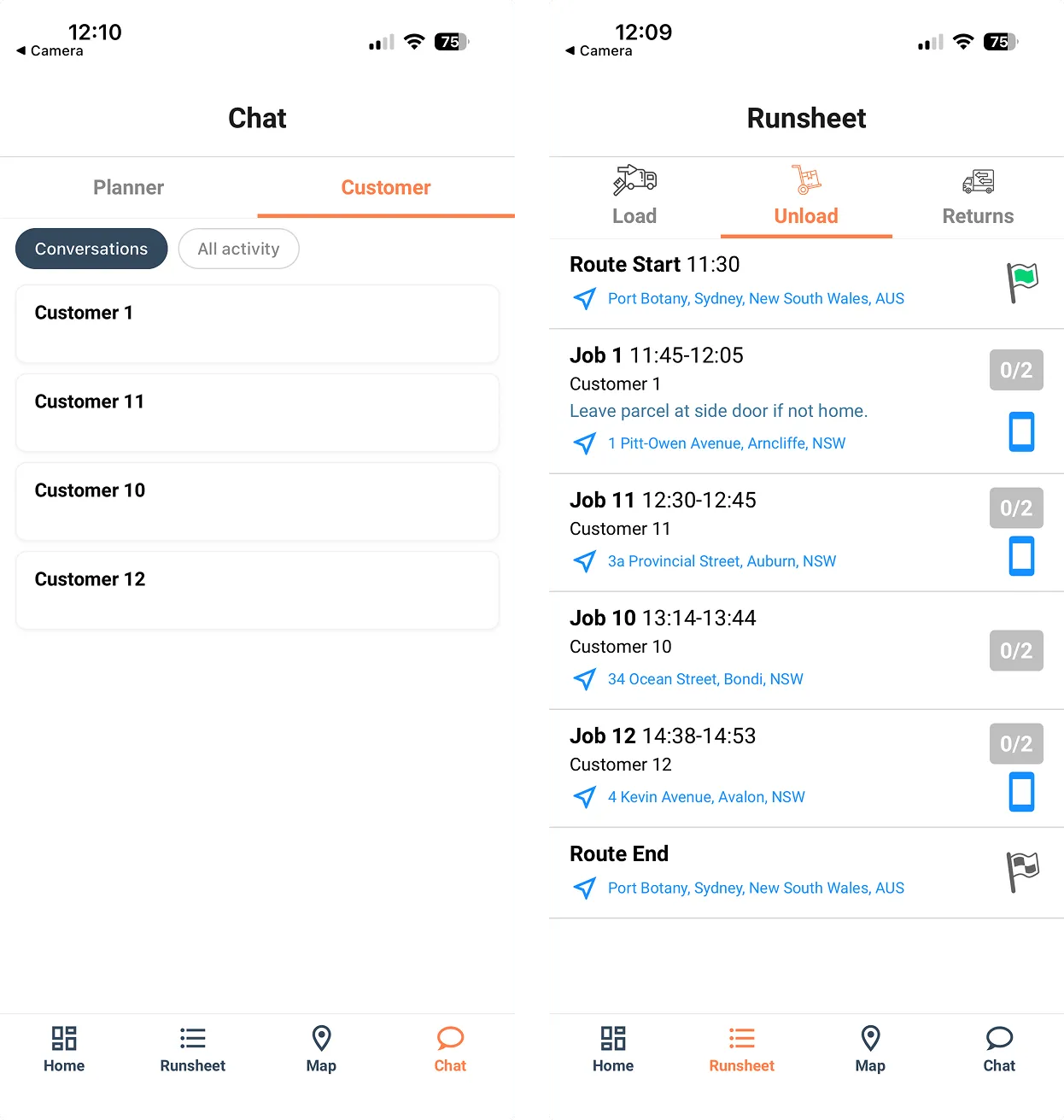
Once a driver has scanned a Runsheet QR, customer conversations are available from the Chat button in the home menu. That is the same place planner chat has always lived. Chat now has two tabs, Planner and Customer.
From the Runsheet, any delivery with customer contact details shows a phone icon. Tapping it opens the chat with that customer directly.
Step 10: Filters and Calling From the App
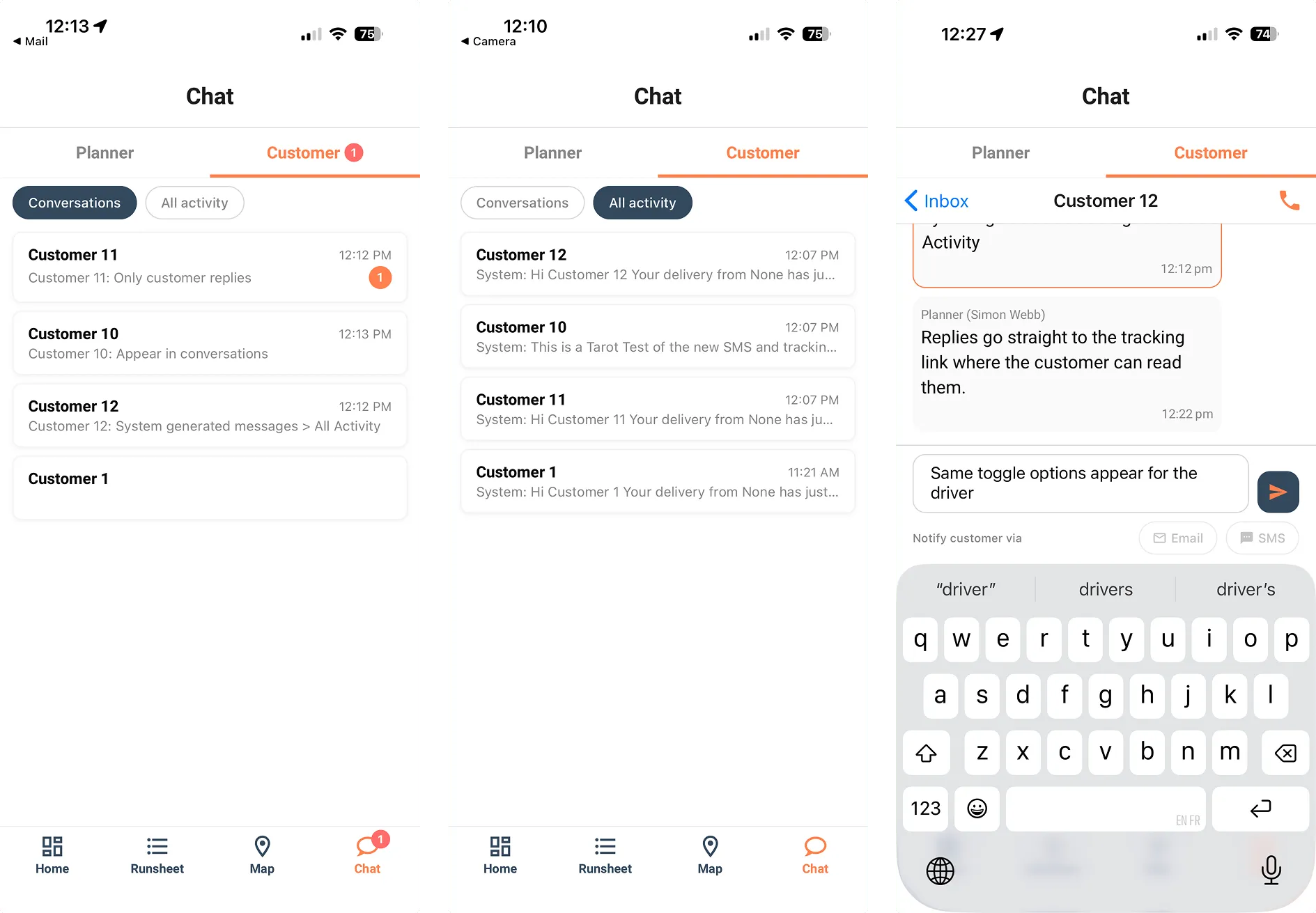
The Driver App carries the same Conversations and All activity filters as the platform, so the driver sees the same picture the planner does.
When a message is not the right tool, tap the orange handset icon at the top of the chat window. It shows the customer’s contact details so the driver can call them straight from the phone.
Step 11: Push a Message Out by Email or SMS
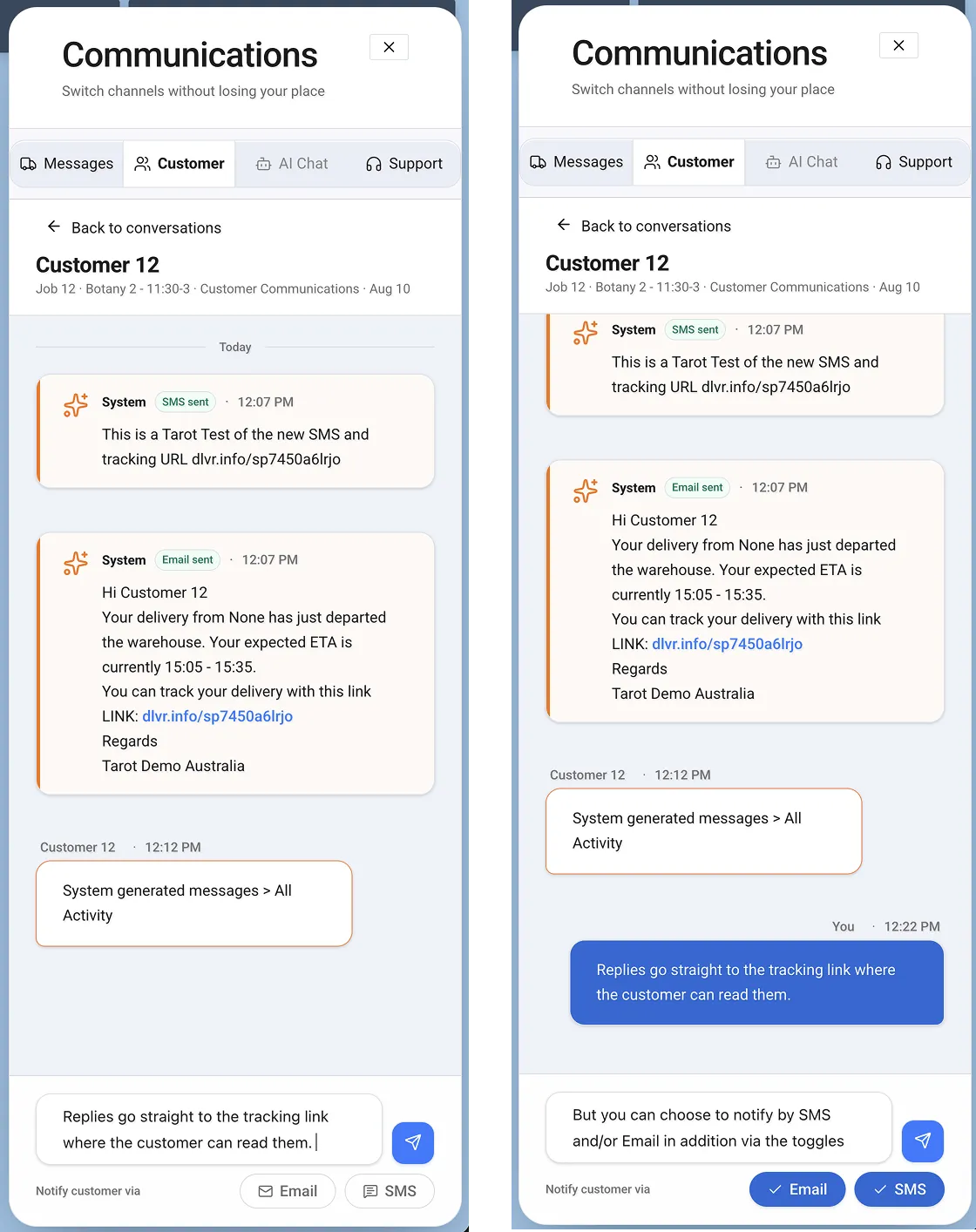
By default a reply goes into the tracking link chat only. If a customer is not watching that page, use the Email and SMS toggles below the message box before you send. Toggle either, or both.
The same toggles are available to drivers in the Driver App.
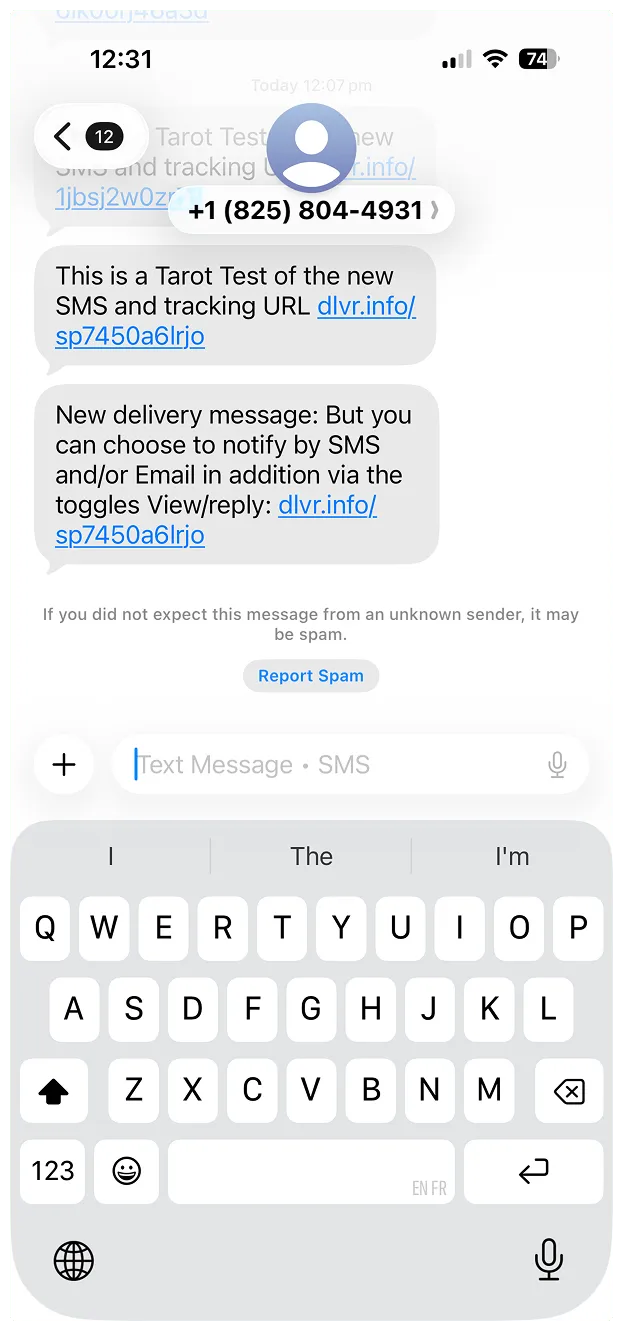
Step 12: What the Customer Receives
The Email or SMS carries your message and points the customer back to the tracking link to read the thread and reply. The conversation stays in one place rather than fragmenting across a phone’s inbox.
Two-Way Delivery Communication — Frequently Asked Questions.
Does my customer need an app or a login to reply?
No. Everything happens on the delivery tracking page they reach from the link in their notification. No download, no account, no password.
Can I stop customers messaging us?
Yes. Turn the Messages button off under Organisation Settings → Delivery & Tracking. You can also rename it if the default wording does not suit your operation.
Who gets notified when a customer sends a message?
Both the planner in the platform and the driver assigned to that Job in the Driver App. Whoever is best placed to answer can answer.
Does the customer get an SMS every time we reply?
Not unless you want them to. Replies go to the tracking link chat by default. Use the Email and SMS toggles when you want the message to reach their phone or inbox as well.
What happens if a customer replies directly to the SMS?
Replies need to come through the tracking link, which is where the conversation lives and where your planners and drivers can see it. The SMS points the customer there for exactly that reason. Wording in the notification templates is yours to control in Events & Actions, so if your customers are the type to hit reply, make the instruction explicit.
What happens if a Job has no phone number or email address?
No tracking link is sent, so there is no conversation. Tarot flags Jobs with missing or invalid contact details on the job list, the run rows and the Job popup before dispatch so you can fix them first.
Can I give our support team access without giving them the planning tools?
Yes. customer_conversations_read and customer_conversations_write are separate permissions. Grant them on their own and a support user can handle customer messages with no access to optimisation or run planning.
Are automatic notifications and manual messages in the same thread?
Yes. Switch to All activity to see system-generated messages alongside anything typed by a person, in order, per Job.
Can a driver call a customer instead of messaging?
Yes. The orange handset icon at the top of the chat window in the Driver App shows the contact details and dials from the driver’s phone.
Get Started
Customer Communications is live for all Tarot Routing customers. If the udf and customer_conversations modules are not yet active on your organisation, email support@tarotanalytics.com and we will switch them on.
Want a walkthrough of how it would work on your operation? Book a demo with the Tarot team.
More about Tarot Routing:
- Customer delivery notifications, and how customers follow a delivery in real time
- Planner Mode in the Driver App
- The Tarot Driver App for last-mile delivery
- Route optimisation and how to reduce delivery costs